

Live Webinar Q&A Management and Chat
Problem
It's challenging for webinar hosts to answer attendee questions, especially because it's difficult to separate questions from general chat. The lack of conversation threads and automation also makes it harder to manage information flow and respond quickly.
Solution
Enable organizers to engage attendees through chat and streamline Q&A management.
Responsibilities
Lead Product Designer
Team members
1 product manager
3 engineers
Status
MVP launched

Feature prioritize research
In 2017, the GoToWebinar research team conducted an Annual Customer Survey to identify key features, customer pain points, and product implications.

Summary
Attendees join live webinars to have questions answered.
Webinar organizers value Q&A as it helps gauge attendee engagement and identify qualified leads for follow-up.
The webinar Q&A feature is vital for both attendees and organizers, but its current experience is challenging to use.

Current Q&A and Chat experience
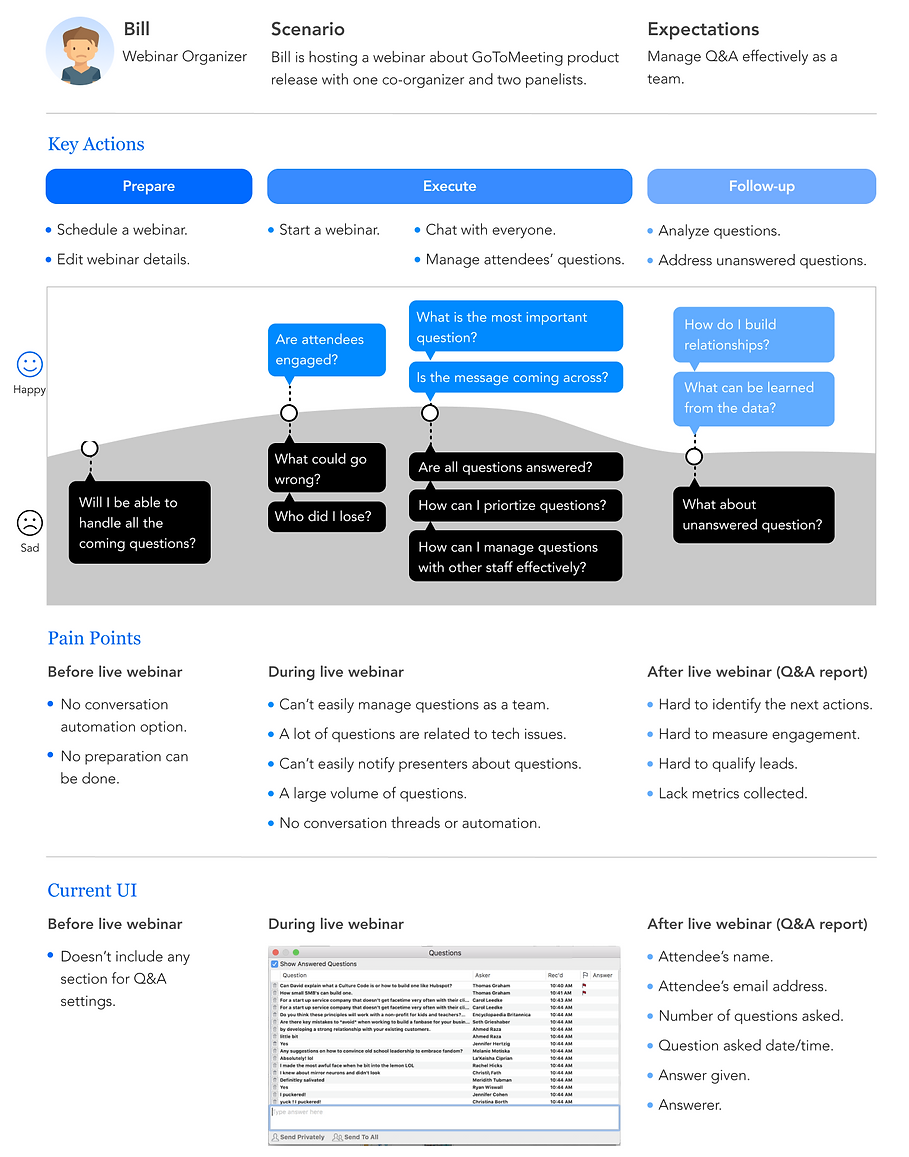
Organizers' current experience
In 2019, we did 13 in-depth interviews to understand organizers' problems and needs in managing webinar Q&A:
.png)
Organizers and attendees’ current interaction
-
Only organizers can answer attendees’ questions.
-
Panelists can only answer questions assigned by the organizer.
-
Attendees can only see their own questions.
-
Attendees can’t directly chat with anyone.

Bill
Teng
Amy
Helena

New Q&A and Chat experience
Organizers
-
A saved answer list enables organizers to quickly answer FAQs.
-
A chatbot responds to FAQs and technical inquiries.
-
Both organizers and panelists can answer questions.
-
Questions can be categorized, starred, and archived.

Bill
Teng
Amy
Helena
Chatbot
Attendees
-
Can freely chat with organizers and panelists.
-
Can upvote questions.


Chat and Q&A as two tabs or Chat and Q&A combined as one tab.

Design iterations before the final design
Usability testing users
-
Engagement Program Managers who actively run webinars.
-
Customer Success Managers who help customers run webinars.
-
Product manager and other colleagues.
Iterations
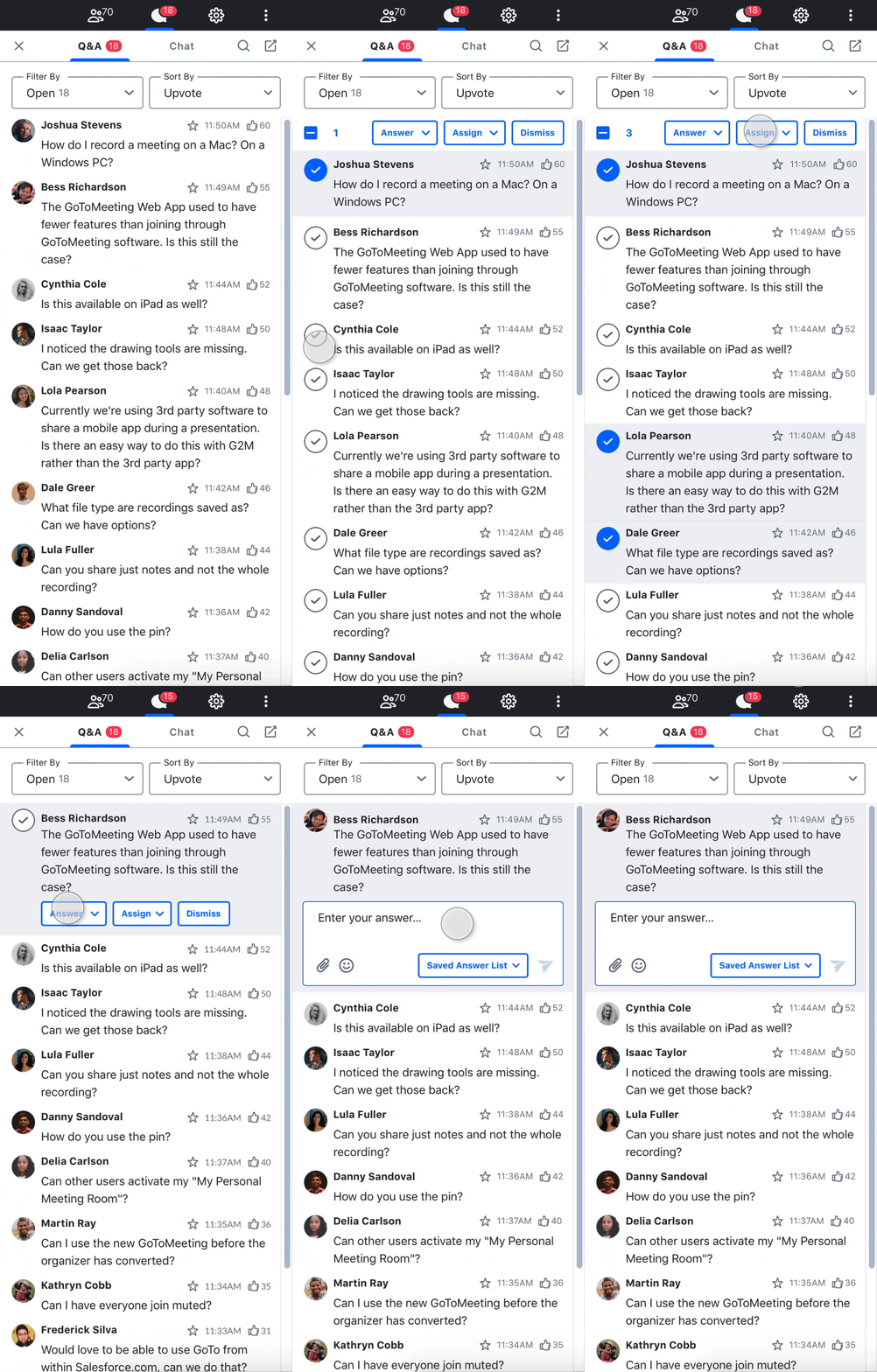
Q&A_taking action.
V1: Select one or more questions to act on, though selecting multiple is an edge case with concurrency issues.
V2 (not the final version): Hover to see available actions.

Q&A_access saved answer list.
V1: Click an icon to view the saved answer list. However, without label, the icon's meaning is hard to understand.
V2 (final version): Replace the icon button with a button with text label. The text label is contextual based on user flow.


Chat
V1: Select a contact to chat with at the bottom.


V2 (final version): Search for and select a contact to chat with at the top.


Final design
Manage attendees & questions as a team
-
Attendee questions are open to all staff.
-
Questions can be assigned to a specific person if necessary.
-
Easy access to "Saved Answer List" and quickly add to it.
-
Clear filter categories and sorting options for easier management.
Group chat with staff or private chat with staff/attendees
-
Search for someone to chat with, helpful when the participants' list is long.
-
Search the chat/Q&A history for key information.
-
Public chat can be enabled by the organizer in the webinar settings.
Works without side panel popped out
Research shows most organizers pop out the side panel for a larger view, but the experience should remain user-friendly even when it's not popped out.

iOS mobile
-
Same features as the desktop version.
-
Tap to reply with an answer.
-
Questions and Chat are two separate tabs in the bottom tab bar.


